Written by Christopher Goodell, P.E., D.WRE | WEST Consultants
Copyright © The RAS Solution 2014. All rights reserved.
So you want to control HEC-RAS from a external program. Perhaps, you have a lot of plans to run and want to run in batch mode. Maybe you wish to run HEC-RAS, evaluate the results, make some changes, and rerun HEC-RAS-all automatically, on its own, while you’re at home with the family. The good news is it can be done. The bad news is there is really no documentation on how to do this.
However I will be publishing a book on this topic this year, so keep checking back for more information on that. The book, "Breaking the HEC-RAS Code" is now available
here.
In the meantime, here’s a quick way to open HEC-RAS, select the plan you want to run, and then run it, all through Visual Basic for Applications in Excel. If you have HEC-RAS, and you have Excel, you can do this.
To begin, open Excel and enter the VBA Environment by pressing Alt-F11 or by clicking on the Visual Basic button under the DEVELOPER tab. If the DEVELOPER tab is not already present in your list of menu items, you can add it by accessing the Excel Options under the File menu item and selecting Customize Ribbon. Check the box next to the Developer tab so that it shows up on in your list of menu items. The DEVELOPER tab provides quick access to the VBA Code Editor as well as a host of other programming options and tools. The VBA editor will look like this when it’s opened for the first time.
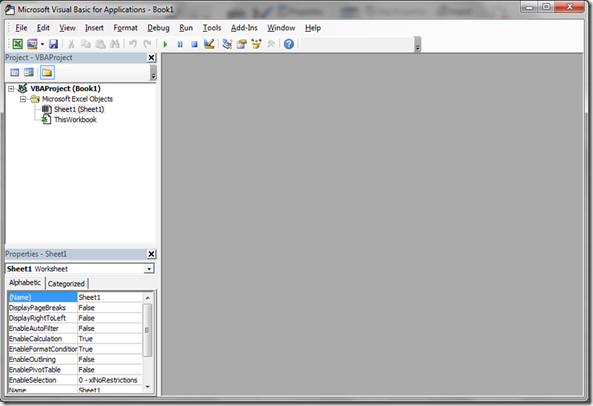 Visual Basic for Applications Editor.
If a module doesn’t already exist, add one by clicking INSERT…Module from the Visual Basic Editor. A new module will be added and the space to the right of the window will be ready for programming code. You can change the name of the module if you like in the properties window (see figure below).
 Visual Basic for Applications Editor with a New Module.
Before you can begin accessing the RAS Dynamic Link Library (RAS DLL), it must be added as a reference. In the Visual Basic for Applications window, select Tools…References from the menu items. A window that lists all of the available reference libraries will come up as shown in the “Add Reference” window. Look for the HEC River Analysis System reference and check the box next to it.
 Add Reference Window.
If you don’t see a reference for HEC River Analysis System, you need to install HEC-RAS on your computer. If you have multiple versions of HEC-RAS installed on your computer, you’ll see multiple entries for HEC River Analysis System. Make sure to check the one for the version of HEC-RAS you wish to use.
Now that you’ve added the RAS DLL as a reference, you have access to it’s library of commands that can control HEC-RAS. Click on the module (Module 1) and type the following code:

Now, it should open and run whatever project you have listed in cell C4 on your Excel Sheet.
Next, you might want to explore the RC.Plan_SetCurrent() subroutine and a Do-Loop block in your code to run through multiple plans in batch mode.
Have Fun!


