Pages

Showing posts with label Hotstart. Show all posts

Wednesday, December 26, 2012

HTAB Problems with using the Drawdown Scheme for troubleshooting.

Written by Chris Goodell, P.E., D. WRE   |   WEST Consultants
Copyright © RASModel.com. 2012.  All rights reserved.

A very convenient way to troubleshoot instability problems with very complex models is the use of a hotstart run with a stepdown scheme.  Creating a stepdown scheme hotstart plan is covered in detail here.  In a previous post, I explained some problems with running the stepdown scheme when you have bridges.  Here I want to highlight problems you may run into with cross sections while running the stepdown scheme.
While drowning out the entire model to provide a high degree of numerical stability, you will be exceeding the maximum HTAB computation points, sometimes by several hundred feet/meters or more.  Technically, this is okay, since HEC-RAS will extrapolate the HTAB curves as needed.  However, extrapolation is done linearly off the last two HTAB points on the computed curve.  If the last two points of the curve happen to be at a location of discontinuity on the curve, bad things can happen.  Take for instance this computed HTAB curve of Conveyance vs. Stage:
image
It looks pretty good.  However, if you zoom in on the end point, you can see that there is a discontinuity in the curve. 
image
Not a big deal, since normally we are well below the last point on the HTAB plots.  However if you are running a step-down scheme, RAS will have to extrapolate off of the last two points when the model is “drowned” and you can see that there will be an overestimation of water surface elevation at the subject cross section during the stepdown process as shown below in the profile plot.  If the overestimation of stage is severe enough, the resulting “stairstep” could lead to numerical instability, causing your model to crash.image
A quick fix to this problem is to just slightly change how the HTAB curves are constructed for the problem cross sections.  Simply remove the last point in the curve by reducing the number of points in the Cross Section Table Properties by 1 (in the example below, change 100 to 99). 
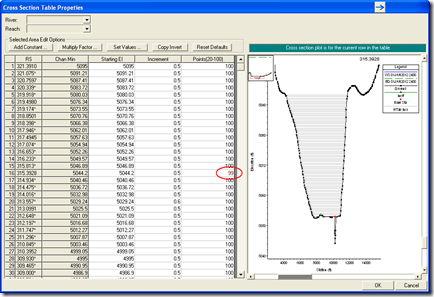
image
This will provide a much better linear extrapolation and get rid of the “stairstep” problem in the stepdown scheme. 
image
Of course a “seasoned” RAS modeler will recognize what is causing the discontinuity in the HTAB curve in the first place and could eliminate that problem by fixing the geometry, whether it be better definition of ineffective flow areas, levee markers, n-value breakpoints, etc.  However, the savvy modeler would recognize that the discontinuity exists at the end points of the cross section, well above the normal water surface elevation range.  Once the model is stable, there’s no need to spend time fixing this.  

Tuesday, June 21, 2011

Hotstarts and HTab Parameters at Bridges

Written by Chris Goodell, P.E., D. WRE | WEST Consultants
Copyright © RASModel.com. 2011. All rights reserved.


An advantage of running a step-down scheme hotstart run is the ability to spatially evaluate stability issues with difficult reaches. One of the elemental features of the step-down scheme is the artificially raising of the downstream boundary during the hotstart simulation to “drown-out” the reach and effectively create a very stable environment. During the hotstart simulation period, problem areas will identify themselves as the water surface elevation slowly lowers itself into a realistic solution. This is a great way to diagnose instability issues. However, if you have bridges or culverts, drowning-out the reach creates water surface elevations that are much higher than the normal water surface range you’d expect at those bridges, and a normal set of HTab parameters may not work well during the initial period of your hot start simulation. I’m speaking specifically about the “Head water maximum elevation” HTab parameter that is required at bridges and culverts. The figure below shows the problem that occurs with a normal headwater maximum elevation during a step-down hotstart run. Notice the flat pool downstream of the 3rd bridge, followed by a severe drop in water surface elevation. In a good hotstart simulation, the downed-out reach should show a consistently level water surface elevation. Ultimately this hotstart simulation crashed.

image

At first, it seems like an easy fix: Simply increase the head water maximum elevation for the affected bridge to an elevation around the “drowned-out” condition. In this case, I increased the head water maximum elevation to 350 ft, which is equal to the initial drowned-out elevation set at the downstream boundary. I make this fix and the profile looks good and the hotstart simulation runs to completion without errors. The figure below shows 6 profiles using the hotstart simulation with a step-down scheme. Notice the level pools as the water surface steps down to the true initial conditions.

image

Now that we have a good, stable hotstart run, switching to the real plan should be seamless, right? Actually, now that I’ve expanded the range of computation points for the rating curve at the 3rd bridge by using an artificially high head water maximum elevation, I’ve lost a lot of resolution in my rating curve for my real plan-particularly down in the range of real water surface elevations. Notice in the figure below that my expanded HTab curves go up to elevation 350 ft. Since I have a finite number of submerged curves, and points on the surbmerged and free flow curves, I have a loss in resolution in the range of realistic solutions (namely down in the 250 ft range).

image The real plan then crashes when the front end of flood wave reaches the 3rd bridge. The figure below shows error at the upstream end of the bridge that leads to the instability-and ultimately the crash.

image

There is actually a very easy fix. Simply change the headwater maximum for the “real” plan to a realistic maximum water surface elevation for that bridge. In my case, I reduced it from 350 ft to 270 ft. If you read through the hotstart posts in this blog, you’ll notice that I say any change in geometry will require a re-run of the hotstart plan, before running the real plan. To stabilize the hotstart plan, you’d have to put the headwater maximum elevation back to 350 ft, and then we’d be back to where we started. However, this is a rare exception to the rule. Luckily for us, changing the headwater maximum does not prompt HEC-RAS to want to re-run the hotstart plan. So we are free to change the HTab parameters at bridges for the real plan. Just make sure that if you DO re-run the hotstart plan, you change the headwater elevation back to the “drowned-out” condition (350 ft). Then “re-change” it to the realistic condition for your real plan (270 ft). It also helps to maximize the number of submerged curves, and the number of points on the free flow and submerged curves. This too provides more resolution. The figures below show the real plan solution with the more refined HTab parameters and the resulting profile plot. Notice the HTab curves are squeezed to a narrower range, providing more resolution. The difference in the solution on the profile plot is subtle, but makes all the difference between a stable and unstable solution at this bridge.

image

image

Monday, May 23, 2011

Modeling Junctions for Unsteady Flow Analysis

Written by Aaron A. Lee   | WEST Consultants
Copyright © RASModel.com. 2011. All rights reserved.

In the current version of HEC-RAS (v 4.1.0) there are two methods of modeling the hydraulics at a junction for unsteady flow. By default RAS selects the Force Equal WS Elevations (Forced) method, which forces the upstream bounding cross-sections’ water surface equal to the downstream water surface. This method may be adequate for some situations like high depths and shallow bed slopes, but can also cause major instabilities in your model if depths are too low and/or bed slopes are too steep. The alternative is the Energy Balance (Energy) method, which uses the energy equation across the junction to solve for WS elevations. The model presented in this post is part of a dam breach simulation and will demonstrate that there can be significant differences between the two methods. This simulation is a hotstart run which seeks to identify stability issues by starting the downstream stage artificially high, and slowly lowering it to the true solution over the run time. The river system in this model has a normal flow combining junction with a steep transition. Special attention will be paid to the steep transition, especially at low flow conditions. The Figure 1 below shows the 3D view of the model extents, which includes the Middle Reach, Tributary C and Lower Reach.


image Figure 1


For a normal flow-combining junction, the water surface elevations at the upstream bounding cross-sections are based on the computed downstream WS elevation. Longer lengths between the bounding cross-sections will generally make your results less accurate and less stable. By looking closely at the above figure you can see that the bounding cross-sections are spaced far apart, which corresponds to long junction lengths. The results for both methods are shown below in a series of profile plots. Figures 2a and 2b show the junction approximately halfway through the simulation. Figure 2a shows the Energy Balance method and Figure 2b shows the Forced Equal Water Surface method. The water surface is high enough that there are no differences between the two methods. For reference, Tributary C is the steeper of the upstream reaches.


image Figure 2a


image Figure 2b


Significant differences develop in Figures 3a and 3b as the downstream stage is lowered. At the same time-step, the two profiles are dramatically different. The Forced method produces a large drop at the junction (Figure 3b), while the Energy method produces only a minor instability (Figure 3a). The large drop (shown in Fig. 3b) occurs because RAS must balance the momentum equation from the upstream bounding cross-section at the junction (an unrealistically low water surface) to the cross-section immediately upstream. The only way to provide a balance is to overestimate the upstream WS elevation, which is why the profile for 3b is much higher than 3a. Notice the spike in the energy grade line. The same problem occurs for the Energy method, but at a much smaller degree.


image Figure 3a

image Figure 3b


Figures 4a and 4b show Tributary C only, just prior to the model crashing for the Forced Equal Water Surface method. There are obvious oscillations in the profile plot, which indicates a very unstable solution. As the stage is lowered downstream, the WS elevation at the junction also becomes lower. At a certain point the WS elevation at the junction approaches the invert for the upstream cross-section; and the model crashes. Figure 4b shows a zoomed in view of the WS elevation relative to the invert of the channel as the channel runs dry.

image Figure 4a

image Figure 4b


The best solution is to shorten the junction lengths as much as possible, which is done by adding cross-sections closer to the junction. By adding additional cross-sections you are decreasing the length over which RAS makes its calculations, which helps to remove the problems with low water surface elevations over a junction. If surveyed data is unavailable, then start by copying the most downstream cross-sections of the upstream reaches to a location closer to the junction. The positioning of these new cross-sections will be based on the judgment of the modeler, who should know the actual conditions of the river system. Make sure to adjust the downstream reach lengths and junction lengths accordingly.


In this example, cross-sections were placed within 20 ft of the junction. Junction lengths were changed from 573’ and 534’ to 35’ and 28’ for Tributary C and Middle Reach, respectively. In addition, cross-sections were added every 40’ on the steep section of Tributary C by interpolation. Figures 5a and 5b each show the profile plots for both the Energy and Forced method at the junction of Tributary C and Lower Reach.

image Figure 5a

image Figure 5b


By redefining the geometry around the junction the error is significantly reduced for both methods and the results appear stable. Both profiles are very similar in this case, showing only a slight difference in WS elevations. The dotted line-type represents the profile for the Forced method. It might not always be possible, or realistic, to place new cross-sections close to the junction. The Energy method allows this model to run to completion without the addition of new cross-sections, though the results appear to not be as good. The table below lists the WS elevations at the bounding cross-sections for each of the different plans: the initial Energy method, and the Forced and Energy method after adding additional cross-sections.


The initial plan has the geometry with the long junction lengths, which consistently calculates lower WS elevations than the plans with shorter junction lengths. Although the elevations were underestimated in the initial runs, they are still within 1 ft of the new profiles. For this model, the Energy method provides a stable solution at the junction without having to modify the geometry. However, given the steepness of Tributary C, the addition of cross-sections near the junction improved the accuracy and stability of the model output. Therefore, even though the Energy method can produce stable results for long junctions in steep reaches, adding more cross sections will improve the results.

Tuesday, December 28, 2010

How to Create a Hotstart File in HEC-RAS for Dam Breach Analysis

Written by Aaron A. Lee   | WEST Consultants
Copyright © RASModel.com. 2010. All rights reserved.
While running unsteady flow simulations in HEC-RAS instabilities may occur when transitioning from the automatically created initial condition file to the first computed time step. These instabilities can be caused by mixed flow conditions, flow splits, or poorly defined initial conditions. A hotstart is another option available for defining initial conditions for the project model. This article presents one technique for setting up a hotstart run to help with initial conditions problems and to troubleshoot problem areas in your project model.

This is done by creating a new plan, using a flow file with a constant discharge as the upstream boundary, and a stage hydrograph as the downstream boundary over a 24 hour period. Typically 24 hours is long enough, but you may find that a longer hotstart period is required. The downstream boundary water surface elevation is defined artificially high, and over the simulation it is gradually reduced until it reaches the true starting depth for your project model. At this point the hotstart file will be written by HEC-RAS. In HEC-RAS lingo, the term “hotstart file” is used interchangeably with “Restart File” and “Initial Conditions file”.

STEP 1. Create a new flow file by opening the current unsteady flow file and navigate to File, Save As, and name it “hotstart”. Once saved, change the upstream boundary condition by selecting Flow Hydrograph under the Boundary Conditions tab. Change the discharge to a constant flow equal to that of the first timestep for the 24-hr period. In this example, shown in Figure 1, the entire Flow column should be modified to contain 155 for the full 24-hr simulation.

image

Select Stage Hydrograph as the downstream boundary condition. The beginning stage should start at an artificially high elevation - somewhere near the invert of the upstream-most cross section. The final elevation at the end of the 24-hr simulation should be equal to the starting downstream water surface elevation of the project plan. Once these values are added into the Stage column, use the Interpolate Missing Values button to add the missing elevations.

The elevation at each time interval should gradually decrease. This makes it easier for the modeler to observe problems as they occur, and where they happen in the model. For this example, the starting elevation is 820 ft and the final elevation is 637.25 ft. This is shown in Figure 2. Save the “hotstart” flow file.

image STEP 2. Navigate to the Unsteady Flow Analysis window and save as a new plan named “hotstart plan”. Name the short ID as “hotstart”. This will create a new plan that will be used to define the initial conditions for the project plan. Under the Unsteady Flow Analysis window select the Ending Date and Time to 24 hours after the Starting Date and Time (or whatever time frame you want to use-just be sure it is consistent with the hotstart flow hydrograph and stage hydrograph you created in Step 1).

STEP 3. The next step is to set up the model so that the hotstart file will be written. Under the Unsteady Flow Analysis window navigate to Options, then Output Options. Figure 3 shows this window.

image

Check the boxes that write the initial conditions file at the Fixed Reference of the hotstart simulation ending date and time. At the end of the specified simulation time (24 hours) HEC-RAS will automatically write the initial condition file. The final step is to ensure that the hotstart plan is using the correct geometry file, and the created “hotstart” flow file. Once the plan is completed and saved, compute the Hotstart simulation.

STEP 4. The profile plot should be reviewed for problems with the hotstart model. This will indicate areas that may cause problems in your project model. Over the course of the hotstart simulation, as the water surface drops into place along your bed profile, look for hints of instabilities. If you hotstart simulation crashes, you’ll know exactly where to investigate-the intersection between the artificially high horizontal pool and the bed profile at the time of the crash. To use the hotstart file as your initial conditions, go to the Unsteady Flow editor of your project plan. Click on the “Use a Restart File” box and browse for the initial conditions file. This file will have an extension that indicates that hotstart plan number that created it, the simulation time (day-month-year) when it was created, and .rst. In this example, it should look like:

Workshop4.p03.10NOV2006.rst

*Warning-If you make a change to the geometry in your project model, you’ll have to re-run your hotstart simulation. However, once everything is set up, this is very easy to do. Simply open the hotstart plan and run it. Then open the project plan and run it.