Pages

Showing posts with label ArcGIS. Show all posts

Thursday, October 24, 2019

HEC-RAS in Three Dimensions

Now this is the kind of post that gets you on The RAS Solution!  Cutting edge creative solutions to complex problems.  This is great stuff.  Thanks Michael for all the effort you put in to this.

Written by Michael Link | AECOM
Copyright © The RAS Solution.  All rights reserved.  

In today’s post we’ll cover two methodologies that leverage HEC RAS results to create impressionable and multi-dimensional flood visualizations. If these methodologies are implemented industry-wide, it is likely that the public will become more engaged with our work and our clients wowed. Products of the two methods are shown below.

Figure 1: 3DV-Flo Output of Muncie, Indiana (left) and 3D Printed Flood of Puerto Rico (right)

Introduction
The mitigation of flood risk is traditionally accomplished through regulation, correct science, and public buy-in. The federal government writes the regulation, we make the floodplain maps, and homeowners begrudgingly purchase flood insurance. How can we as engineers change the public’s sentiment towards our work and how can we further reduce infrastructure damage? One way we can do this is by transforming HEC RAS results into a format that is visually stimulating and easily digestible for nearly anyone. 

FIRM maps, WSEL/Depth rasters, and inundation boundaries serve the purpose of communicating information but do not necessarily communicate flood risk in a simple and powerful manner. This post is targeted at transforming RAS results into just that, a simple and powerful resource for capturing the attention of the public. If flood risk is internalized by communities, we can expect infrastructure loss to decrease and funding for our line of work to increase. Let’s dive in!

3DV-Flo (3D Visualization of Flooding)
3DV-Flo is a methodology that takes in RAS results and generates a 3D flood visualization in Google Earth. Here are a few examples of 3DV-Flo output.

Figure 2: Austin, Texas flooding visualized with 3DV-Flo


Figure 3: Google Street View of 3DV-Flo output


Figure 4: Muncie, Indiana flooding visualized with 3DV-Flo

The following YouTube playlist shows examples of 3DV-Flo output (the first video in the playlist is embedded below).  If you would like to explore the output yourself in Google Earth, the non-regulatory KML’s can be downloaded here.


3DV-Flo allows the information stored in WSEL and depth rasters to be viewed three-dimensionally in Google Earth. This output is an improvement upon RAS Mapper generated KML’s in that the results are no longer clamped to the ground. The 3DV-Flo method relies on three inputs (an inundation boundary, depth raster, WSEL raster), two free software (HEC-RAS, Google Earth), and one proprietary software (ESRI ArcGIS*). The 3DV-Flo toolbox has been tested on ArcMap for Desktop versions 10.3.1 and 10.6.1. Compatibility of this toolbox cannot be guaranteed with ArcGIS Pro or other Desktop versions. Additionally, there are two model types within the 3DV-toolbox. The first uses tools from the Advanced ArcGIS License. The advanced model is slightly faster and provides the functionality of adding breaklines to your resulting mesh. Breaklines are helpful for modelling levees, elevated roads, and dams. The second model uses tools solely from the Basic ArcGIS license, but you must have the 3D Analyst and Spatial Analyst extensions activated as described in this ESRI post. If this tool has a red ‘X’ next to it in ArcGIS follow the steps discussed in this video.  Lastly, if you are using the basic version of the 3DV-Flo toolbox it is essential that your inundation boundary shapefile name not contain spaces or special characters.  For example, if your shapefile name is Inundation Boundary (Max Value_0).shp, you should modify this to be InundationBoundaryMaxValue,shp before using the toolbox.

Assuming you have a georeferenced 1D or 2D RAS model and access to ArcGIS, let us proceed with the tutorial. You can follow along with the video below or you can scan the detailed written instructions.
*3DV-Flo methods are currently dependent on ESRI ArcGIS. These methods can surely be recreated in QGIS or in a standalone script given enough time and ingenuity. Any individual with the time and desire to make this a fully open-source method can reach out to Michael Link for further guidance. 


3DV-Flo (3D Visualization of Flooding) Steps:


                  1.  Download 3DV-Flo Files

a.       Download 3DV-Flo zipped files from Github here

                  2.  Within HEC RAS

a.       Open geo-referenced HEC RAS project
b.       Open RAS Mapper
c.       Import best available terrain if not already there
d.       Right-click results and click ‘Add new results layer’ for the max inundation boundary, depth raster, and WSEL raster
e.       Compute/update layers
f.        Export break lines as shapefile if applicable

                  3.  Within ArcGIS

a.       Open blank MXD
b.       Import model output (inundation boundary, depth raster, WSEL raster, and breaklines) to MXD
c.       Import symbology shapefile. Adjust symbology to be blue with no border and displayed with a transparency of 40%
d.       Open the 3DV-Flo toolbox by navigating there in ArcCatalog
e.       Open the 3DV-Flo_WSEL tool
                                                               i.      The 3DV-Flo_Depth tool is used to reference flood depths to the ground rather than to mean sea level. This tool can be used when the vertical datums between RAS and Google Earth differ.
                                                             ii.      To use this tool right click the KML in Google Earth, click properties, click altitude, and switch the altitude to be ‘relative to ground’
f.        Populate tool parameters and specify where the Google Earth KMZ is to be saved
g.       If breaklines are not applicable, then bring in the ‘Arbitrary_Breakline’ shapefile from the unzipped folder
h.       Run 3DV-Flo tool

                 4A - Within Google Earth for Desktop

a.       Download software here if not installed on your machine
b.       Open Google Earth
c.       Click File>Import>and then navigate to the KMZ you created in ArcGIS

                 4B - Within Google Earth for Chrome

a.       Open Google Earth in chrome browser
                                                               i.      https://Earth.Google.com/web/
b.       Click three horizontal lines in the top left of window
c.       Click my places
d.       Click import KML file
e.       Click open file
f.        Navigate to KML file of interest and import

There are two known 3DV-Flo ‘bugs’. The first of which deals with poor terrains spatially restricting results. The second deals with 3DV-Flo output that appears unrealistically high in Google Earth. The first bug can be fixed by updating the underlying terrain. The second bug can be fixed by relating 3DV-Flo output relative to the ground rather than to mean sea level. These bugs and their respective workarounds are discussed in this video.

The vision for 3DV-Flo in the future includes 1. widespread adoption of the method by industry, 2. conversion of the entire US regulatory floodplain into 3DV-Flo format, and 3. the combination of 3DV-Flo with the National Water Model forecasts to help cities prepare for incoming floods. Advancing goal #1 is in part achieved through the readership of this post. Advancing goal #2 is theoretically possible by splitting the NFHL polygon layer nationwide by all XS’s with regulatory elevations. The resulting polygons could be transformed into 3DV-Flo output. Lastly, goal #3 has been prototyped in this video and this post. Any assistance to advance these goals is welcomed.

3D Printed Floods
According to the Wohlers Report 2019, the 2020 value of 3D Printing and Additive Manufacturing will be $15.8 billion! Can we get a piece of that??? One way that we can participate in this trend is to overlay RAS results onto 3D printed terrains. Here is a YouTube playlist link to some examples of just that for a pluvial flooding model of Puerto Rico (the first video in the playlist is embedded below).


The intended effect of this visualization is to intuitively convey how floods develop and where they pose the largest threat. 3D printed terrains are often presented at a large scale due to the coarse nature of the underlying digital elevation model. This visualization is unlikely to be used as a structure by structure evaluation of risk. It is more likely to be used in a city hall meeting or in the classroom. The Austin, Texas Watershed Concepts Group from AECOM was the first (to my knowledge) to prototype a 3D Printed Flood. Details on their FEMA funded San Marcos, Texas project can be found here. That same group generated a second 3D printed flood for Puerto Rico to give locals a high-level understanding of, go figure, watershed concepts. The projector and mount costed roughly $500. The San Marcos 3D print costed $1400 and the Puerto Rican model $250. The difference in price was related to print infill density and size.

If you are interested in making one of these models you can follow along with the video tutorial below and/or you can scan the detailed written instructions.


3D Printed Flood Steps:

                  1.  Develop 3D Printed Terrain

a.       Check 3D model repository (Thingiverse or Google searching 3D printed terrain of “Location”) to see if your location already has an STL 3D print file
b.       If there is no pre-existing STL file or you would like to make your own, you have a few options. 
                                                               i.      Create STL from the Terrain2STL (Ideal due to time saved and nonideal due to fixed rectangular shape of STL)
                                                             ii.      Create terrain from Touch Terrain (Ideal due to time saved and ability to specify bounding coordinates)
                                                           iii.      Create STL by converting Lidar to greyscale image (process described here) and load into Blender to convert the greyscale into an STL file (process described here).
                                                           iv.      More options detailed here.
c.       Modify STL file as needed in Meshmixer
                                                               i.      The most important functions in Meshmixer are:
1.       Edit > Plane Cut – This function allows you to discard unnecessary pieces of your model and to break your model down into smaller chunks to be printed by small 3D printers
2.       Edit > Transform – This function allows you to stretch your model solely in the Z direction. For more hash marks click the up arrow.
3.       Analysis > Units/Dimensions – This function allows you to rescale your model proportionally in all directions
d.       If you do not have a 3D printer at home or in the office, shop around to see where you can get the best deal. For prototyping, I found that 3D Hubs was the cheapest and easiest to use. Their banana reference was amusing and useful for catching extremely large or small prints. For the final 1.5-foot-long print of Puerto Rico, I used a local printing service so that I could guarantee the quality and interact with a human. Here is a list of the top 10 online 3D printing services in 2019.

                  2.  Develop Movie of Flooding in HEC RAS

a.       Download ShareX or comparable screen capture software
b.       Create or load a pluvial or fluvial model in HEC RAS
c.       Open RAS Mapper
d.       Load web imagery, terrain, or basemap to be displayed in movie
e.       Open ShareX and create screen capture video of unsteady RAS simulation


3.  Project Movie of Flooding onto 3D Printed Terrain
a.       Download VLC media player or comparable video software
b.       Open the flooding movie in VLC
c.       Connect the computer to projector via HDMI cable
d.       Setup a projector and table mount
e.       Pause flooding movie at peak flooding and calibrate the movie extent to 3D print extent by
                                                               i.      Raising or lowering the Pixar lamp stand
                                                             ii.      Adjust the aspect ratio of video
f.        Equipment setup is detailed further in this video
g.       Project flooding onto terrain with basemap


In Conclusion
As illustrated in this post, the impact of our RAS modeling can be greatly bolstered with spectacular Google Earth imagery and mesmerizing 3D prints. By presenting our clients and communities with these flood visualization resources, our work can be used outside of the narrow confines of designating whether someone should or should not buy flood insurance. 

Acknowledgements
The inspiration for the 3DV-Flo methodology would not have been possible without the catalysts listed below.
1.       a Scottish scientist’s Google Earth clamped-to-ground flood simulation
2.       a breakline/polygon GIS tool from Ryan Dalton
3.       a sea-level rise Google Earth tutorial from David Sadoff
4.       and a Google Earth flood simulation from Mariusz Krukay

Much gratitude goes out to Muhammad Ashraf and Yuxiang Kang for technical guidance and edits, Alyssa Ruiz for computational fine-tuning, John Wade for wise GIS counsel, Yacoub Raheem, Clint Kimball, and Justin Baker for patient 2D HEC-RAS Training, and Chris Wright for overall mentorship. A big thanks goes out to the U.S. Government for providing industry-standard software and innovations free of charge to the world through funding of top-notch institutions (Hydraulic Engineering Center, National Laboratories, Academia, etc.) and openly sharing findings. Lastly, I'd like to thank Chris Goodell for this platform and for single-handedly progressing and pushing the hydraulics industry forward over the past decade. Your clear explanations and innovative posts have been the cornerstone of my understanding of HEC-RAS.


Contact Details:
For more information on this topic, please message Michael Link through LinkedIn - https://www.linkedin.com/in/michael-link-b88329118/

Michael Link works for AECOM in Austin, Texas.  He received a B.S. in Ecological Engineering from Oregon State University and an M.S. in Environmental and Water Resources Engineering from The University of Texas at Austin.  Michael is an EIT and certified floodplain manager.  Outside of work,  enjoys combining hydraulics, spatial analysis, and data science in novel ways.


Friday, June 23, 2017

New Geospatial editing tools coming in HEC-RAS Version 5.1

Written by Chris Goodell
Copyright © The RAS Solution 2017.  All rights reserved


New geospatial editing tools are currently in development for the next version of HEC-RAS-Version 5.1.  While no date has been set for the release of Version 5.1, it is expected sometime within the next year or two.  But no guarantees!  This will be an exciting new addition to HEC-RAS in that users will no longer be reliant on 3rd party software like ArcGIS or AutoCAD to develop geometric features like cross sections, river lines, flow lines, storage and 2D areas, etc.  All of this will be done within the HEC-RAS program environment.  And this will effectively eliminate the need for HEC-GeoRAS.

HEC recently published it's Spring 2017 Newsletter, which has a very nice article by Cameron Ackerman ,P.E., D.WRE on some of the new tools and capabilities that will be available within HEC-RAS Version 5.1 for extracting GIS information from digital terrain models.  The newsletter can be read here: 

http://www.hec.usace.army.mil/newsletters/HEC_Newsletter_Spring2017.pdf

Cameron's article on new geometric editing features in Version 5.1 starts on page 20.  

The new geospatial editing toolbar will serve as the base point for adding and editing geospatial features in HEC-RAS and will be docked to the RAS Mapper window.  It includes editing tools for adding new features, selecting/editing features, undo and redo, and  plotting terrain profiles.


With these tools, you'll be able to add geospatial features and interact with them directly within HEC-RAS.  Here you see the ability to move stream centerline points in RAS Mapper:


HEC also plans to have interactive help messaging while working in the geospatial environment to help the user identify errors in the geometry setup.  The following figure shows help messages for locations where bank lines do not intersect cross sections, which would result in missing bank stations.


These new features will make it much easier to identify problems with your model construction and fix those problems without having to leave HEC-RAS.  Here we see a poor definition of study limits not allowing for proper mapping of the flood inundation zone.  By quickly adjusting the study limit polygon, a more appropriate inundation map can be drawn.


This is just a brief preview of all of the exciting geospatial editing tools HEC-RAS will include in Version 5.1.  Please read the article by Cameron Ackerman in the HEC Spring 2017 Newsletter for more information.  

Thursday, May 14, 2015

The Projection File

Written by Christopher Goodell, P.E., D.WRE
Copyright © The RAS Solution 2015.  All rights reserved.

RAS Mapper is a window in HEC-RAS that allows you to preprocess 2D areas, map results, and manage background images.  In future versions of HEC-RAS, RAS Mapper will become more and more prevalent in our HEC-RAS modeling experience.  As I understand it, eventually RAS Mapper and the geometry editor window may merge to form the front-end interface for HEC-RAS, replacing the iconic “Main RAS Window”.

image

But that’s speculation.  What is not speculation is that if you want to use HEC-RAS 5.0 for anything more than a very basic model, there is really no getting around using RAS Mapper, and by extension…The Projection File!  The projection file defines a specific geographic coordinate system and projection and is somewhat of a new thing for us HEC-RAS modelers (it has actually been a part of RAS Mapper since it’s inception, but now with 2D modeling and web-imagery in Version 5.0, RAS Mapper is becoming an integral part of HEC-RAS modeling). The projection file requires us to know something about geospatial mapping (i.e. GIS), which we really haven’t had to know too much of before as RAS users.  But if you wish to use RAS Mapper, and you will, you need to understand what the projection file is and how to get one.  Without it, RAS Mapper is pretty much useless.  Adding a projection file to our RAS project establishes the project’s geospatial reference.  Projection files have the extension *.prj.  Be careful not to confuse this with the HEC-RAS project file, also with an extension *.prj.  They both reside in your HEC-RAS project directory, but only a properly formatted projection file will work in RAS Mapper for setting your projection.

The projection file is really just a simple text file with keywords in a specific format.  In fact, it is a single string written in “Well-Known Text” format, or WKT.  It’s simple, easy to read and was created by the Open GIS Consortium.  Here’s what a projection file looks like on the inside.  Notice that there are some keywords, identified by all CAPS, followed by some data related to the key-word, contained in brackets [  ].  I've color-coded it to make it easier to see what goes with what.  The purple color denotes the highest order in the hierarchy, followed by blue, then green, then red.  In other words, a red keyword is a “child” to a green keyword, green is a child to blue, and blue is a child to purple. 

image

Each keyword and the bracketed data that follows is called a “clause”.  The first and primary clause, PROJCS, stands for Projected Coordinate System.  The projected coordinate system is made up of the following sub-clauses:

1.  Geographic Coordinate System (GEOGCS), which is based on degrees latitude and longitude and contains the horizontal reference datum (DATUM), and the reference meridian for longitude measurements (PRIMEM).  DATUM also contains a description of the shape of the earth (SPHEROID), which in the example above is the Clarke Ellipsoid of 1866.  Units (UNIT) are inferred here only for the GEOGCS, in this case degrees.
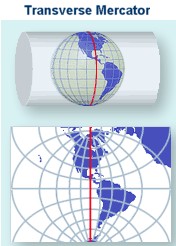
2.   Projection (PROJECTION), which is the projection from geographic coordinates (lat/long) to projected coordinates.  This is essentially how the three-dimensional spheroid (Earth) is projected to a two-dimensional viewing medium.  In the example above, Transverse Mercator is selected, which uses the Universal Transverse Mercator (UTM) coordinate system.


Cylindrical projection - transverse aspect © USGS

3.  Various projection parameter values (PARAMETER).  The parameter is labeled in quotations, followed by its value. 
4.  Units for the projected coordinate system (UNIT).  Here meters are used as the linear unit with a conversion factor of “1”.  The conversion factor converts the described units into meters.  If “FOOT_US” is used, then the conversion factor would be 0.30480060960121924.

There may be some additional clauses in your projection file, but the ones listed above seem to be typical.  All of the keywords used in WKT format with descriptions can be found at GeoAPI here.
You can write your own projection files and GeospatialPython.com presents a method (there are other examples out there, just Google it).  However, it is much easier and much more practical to find an already-compiled projection file and use that.  If you have a georeferenced HEC-RAS project already, every shapefile used to create your geometry components (stream centerline, xscutlines, flowlines, etc.) comes with a projection file.  Just find where it is stored on your computer and use that. 

If you don’t have the GIS files that were used to create your georeferenced HEC-RAS project, you can find projection files in at least three different places:  ArcGIS 10.0 or earlier, spatialreference.org, and the EPSG Projection Database.  If you know of others, please comment below!

When using any of these sources, make sure you pick the correct projection file.  You’ll know if it is the right one by bringing in web imagery to RAS Mapper and checking to make sure that everything lines up spatially correct.  ArcGIS (Versions prior to 10.1) includes a Coordinate Systems folder that contains more than 5,000 geographic, projected, and vertical coordinate systems.  Unfortunately, newer versions of ArcGIS do not come with that folder.  If you have ArcGIS 10.1 or newer or don’t have ArcGIS at all, you can access a large database of spatial reference systems at http://spatialreference.org/

image


If you go to spatialreference.org, make sure you only select from the EPSG, IAU2000, or spatialreference.org references.  The ESRI references only contain the GEOGCS clause in the projection file and not the complete PROJCS clause.  They will not work in RAS Mapper.   Once you’ve found the reference you want, click on it, then select “.PRJ File” from the list of available formats.  A projection file will then be downloaded to your computer and you are ready to use it in RAS Mapper.  There is a convenient Search box that allows you to search on key words for your reference.  For example, if your project is in Hawaii and you know your horizontal datum is NAD83, you can enter the keywords:  Hawaii NAD83, click the Search button and you’ll see the following list of spatial references:

image

Also available on line is the EPSG Projection Database, hosted on GoogleCode by geospatialpython.org.  Here you'll find a text file of a multitude of projection files in the correct WKT format that can easily be copied and pasted into your own projection file.

Once you’ve selected a projection file and assigned it to RAS Mapper, double-check that it is correct by adding web imagery.  If everything lines up, you are good to go.  The figure below shows the Muncie dataset in RAS Mapper, with an incorrect projection file assigned.

image

Obviously our streamlines and cross sections in this example are not correctly aligned in Muncie Indiana where they belong.  The incorrect projection file has landed us in the middle of Alberta, Canada!

image


Reassigning the correct projection file gets the model back to its correct spatial reference.

image

image

Does anyone know of any other sources of projection files that we can use in HEC-RAS?  If so, please comment below.

And here are some great follow-up comments from Dudley M.  Thanks Dudley for passing along this information!  "I was using RAS Mapper to set the SRS. From the menu Tools->Set Projection for Project. This brings up the "Spatial Reference Projection File" dialog where you can specify a filename. RAS Mapper will read the file and interpret as Chris described to get the coordinate system and projection.

I knew I had a valid ESRI projection file because it came from ArcCatalog. But RAS Mapper complained "Error - unable to make a projection with specified file. Make sure the file is a valid ESRI projection (*.prj) file." I looked in the projection file with a text editor. I saw that mine included a vertical datum clause. Chris didn't mention this in the post, so I thought maybe this was something RAS Mapper didn't like. The vertical datum information is introduced by the keyword VERTCS. I removed this entire part of the projection file and it worked.

But before it worked, I encountered another hitch. It's in that dialog "Spatial Reference Projection File." If you browse for a file and choose the same one you had before, the app does not read the file again. In other words, it doesn't refresh. I had to select a different projection file, choose OK, then go back and choose my edited projection file, and choose OK. For many minutes I was mystified why my edits to the file were not taking. I was making edits to the projection file in a text editor, then switching over to RAS Mapper and attempting to have it read the file again.

So if you get this error message even though you think you're giving RAS Mapper a valid projection file, try what I did."